How to Format a Book for Kindle and Paperback Without Layout Problems

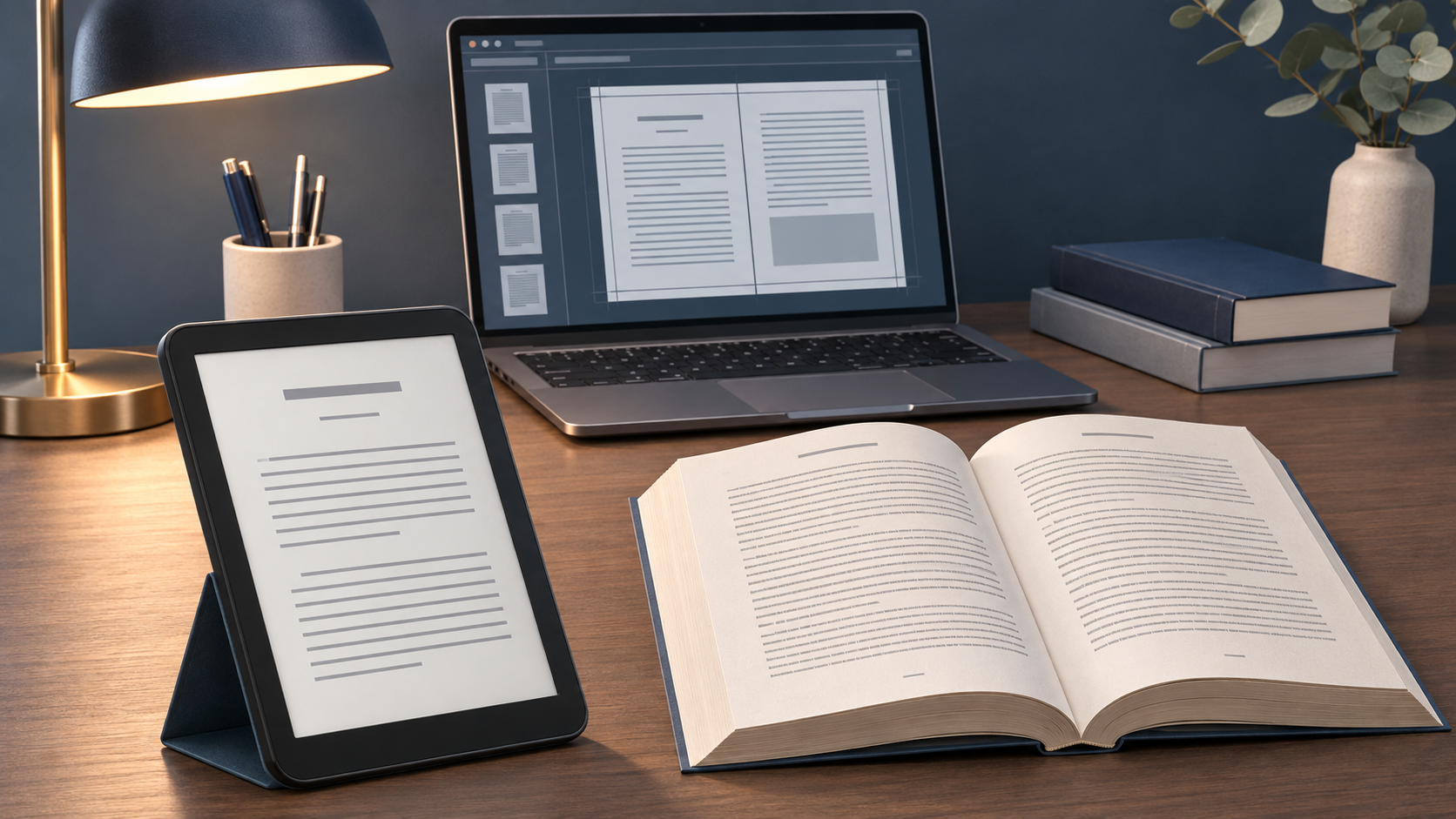
A manuscript that looks perfect in Microsoft Word may behave very differently when converted into a Kindle eBook or printed as a paperback.
That's because digital and print editions use different layout systems.
Kindle eBooks generally use reflowable text that adapts to the reader's device, while paperbacks rely on fixed page dimensions, margins, and pagination.
Authors who understand this difference can avoid many of the layout problems that appear during publishing.
Why eBook and Print Formatting Are Different
A reflowable eBook allows readers to change font size and adjust their reading experience.
The number of visible words, lines, and screens can vary depending on the device.
A paperback has a fixed layout. Each page has physical dimensions, and the position of text remains the same after printing.
This difference affects several elements:
| Element | Kindle eBook | Paperback |
|---|---|---|
| Text layout | Reflowable | Fixed |
| Page numbers | Device-dependent locations | Fixed printed page numbers |
| Margins | Adapt to reading environment | Set for physical pages |
| Headers and footers | Generally omitted | Can be included |
| Navigation | Linked table of contents | Printed contents and page references |
| File preparation | Digital publishing format | Print-ready interior, often PDF |
Trying to preserve a paperback's exact layout in a standard reflowable eBook can introduce unnecessary breaks, spacing problems, and navigation errors.
Step 1: Prepare a Clean Master Manuscript
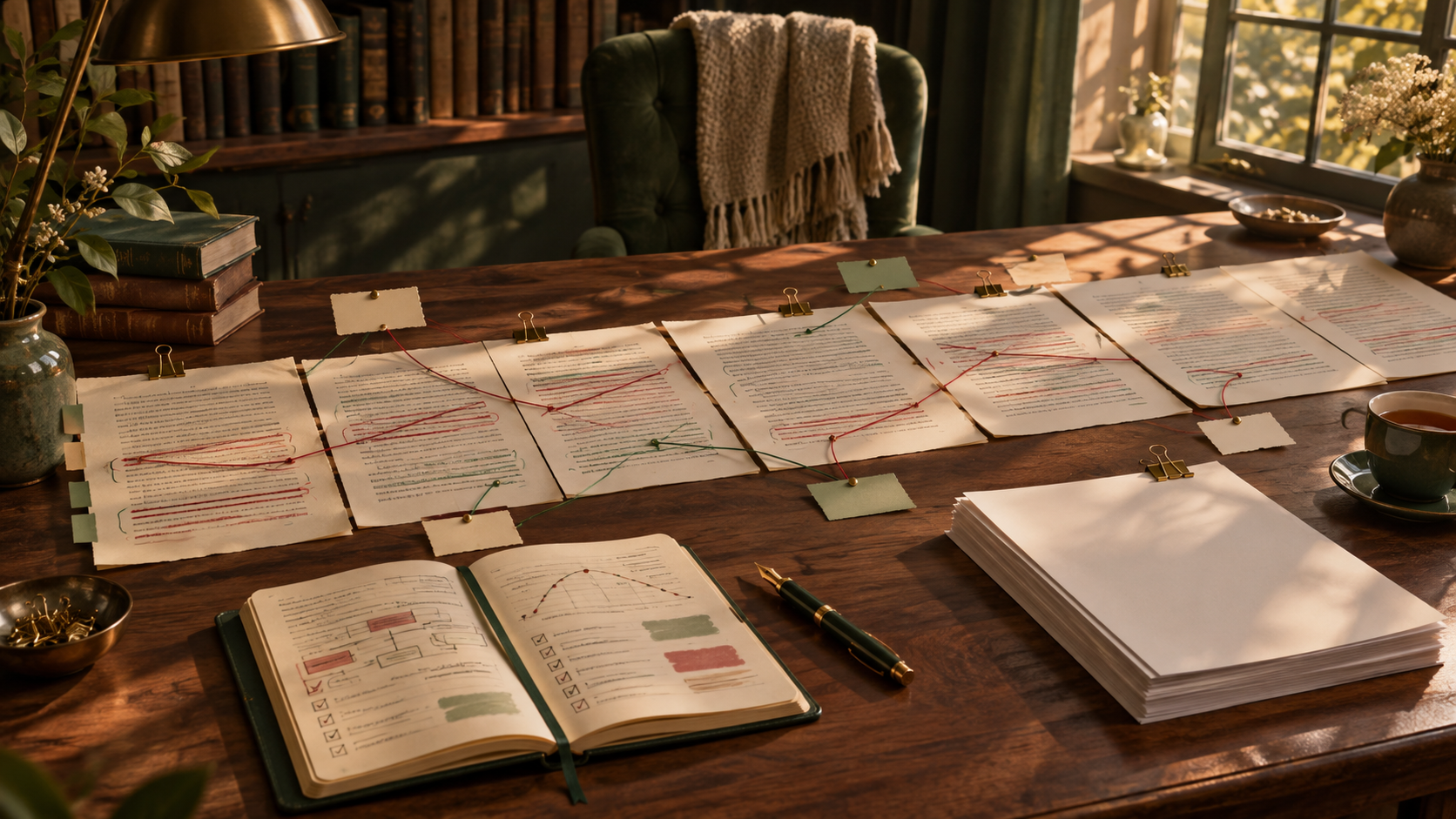
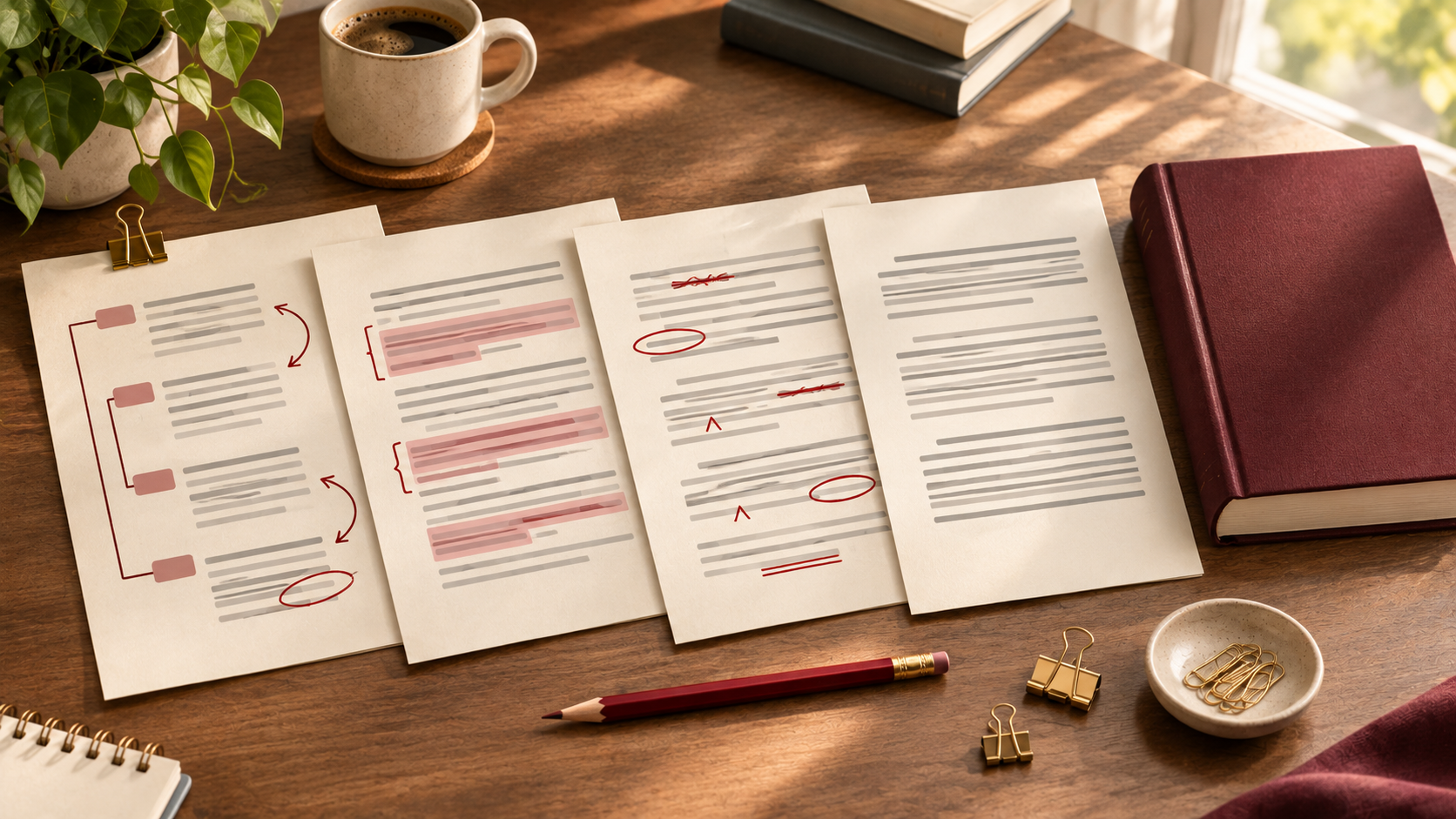
Before creating either edition, prepare a final edited manuscript.
Use consistent paragraph styles rather than formatting each section manually.
Your master file should have:
Consistent chapter headings.
Proper paragraph indentation or spacing.
Clearly defined scene breaks.
Correctly positioned images, if applicable.
Completed front and back matter.
No unresolved comments or tracked revisions.
Create backups before making format-specific changes.
A clean master manuscript makes corrections easier because you can update the original content instead of trying to repair separate files independently.
Step 2: Format the Kindle eBook
For a conventional text-heavy book, begin with the reader's ability to navigate and resize the content.
Use Styles for Chapter Headings
Apply proper heading styles to chapter titles.
This helps digital publishing software identify chapters and create a navigable table of contents.
Avoid using large numbers of blank lines or manually inserted spaces to position titles.
Set Paragraph Formatting Consistently
Use paragraph settings for indentation and spacing.
Do not press the Tab key repeatedly to create first-line indents. Amazon's eBook Manuscript Formatting Guide specifically warns that tab-based indentation may not convert as expected.
If your novel uses scene breaks, distinguish them using an intentional paragraph style or consistent scene-break symbol.
Create Digital Navigation
A Kindle eBook should have a working navigation structure.
Readers should be able to move between chapters without scrolling through the entire manuscript.
Check chapter links and any other hyperlinks during previewing.
Avoid Print-Specific Elements
Standard reflowable eBooks generally do not need printed page numbers, running headers, or fixed-position footers.
These elements can conflict with a flexible digital reading experience.
Step 3: Format the Paperback Edition
Paperback formatting requires decisions about the physical book.
Choose a Trim Size
Trim size refers to the finished width and height of the printed book.
For example, 6 × 9 inches is a common paperback size, but it is not the correct choice for every genre or design.
Select a size that suits your content and distribution service.
Set Margins and Gutters
Printed books require adequate margins so text remains readable after binding and trimming.
The inside margin, often called the gutter, must accommodate the thickness of the book.
According to Amazon KDP's trim size and margin guidance, required inside margins vary with page count.
A longer book may need a larger inside margin.
Understand Bleed
Bleed is necessary when artwork or background colors extend to the edge of a printed page.
For KDP paperbacks, artwork must extend beyond the trim boundary according to its published specifications.
KDP requires a PDF manuscript when the interior includes bleed.
If your book consists entirely of text within the page margins, you may not need bleed.
Review Page Breaks and Pagination
Inspect chapter openings, blank pages, headers, footers, and page numbers.
Watch for isolated lines at the beginning or end of pages, unusually large gaps, and headings stranded without body text.
For a professional print layout, these details matter.
Step 4: Choose the Right Formatting Tool
Your tool should match the complexity of the book.
Microsoft Word can work for simple manuscripts when the formatting is carefully controlled.
Kindle Create can help prepare text-heavy books such as novels and memoirs for Kindle and paperback publication.
However, Amazon documents limitations for some paperback layouts, including complex content with tables, footnotes, and full-bleed images.
Specialized layout software or professional formatting may be more appropriate for illustrated books, technical manuals, textbooks, or complex nonfiction.
Step 5: Preview Both Editions Separately
Never assume that a file is correct simply because it uploaded successfully.
Review the Kindle edition using an appropriate previewing tool, checking different screen sizes and text settings where available.
For paperback, inspect the complete print preview and consider ordering a physical proof copy.
Pay special attention to:
Opening and closing pages.
Chapter starts.
Scene breaks.
Images and captions.
Tables and special characters.
Page numbers and navigation.
Front and back matter.
A physical proof can reveal issues that are less obvious on a computer screen.
Common Formatting Mistakes
One of the most frequent mistakes is treating an eBook as a miniature PDF.
Another is manually inserting spaces and blank lines to imitate page design.
Other problems include inconsistent paragraph styles, poorly sized images, incorrect print margins, and failing to inspect the final converted files.
The solution is to maintain a clean source manuscript, prepare each format according to its requirements, and check the actual output.
Final Thoughts
Formatting is not simply about making a manuscript attractive.
It is about making the reading experience function correctly.
Start with a clean manuscript, respect the differences between reflowable and fixed layouts, and preview every edition before publication.
A carefully formatted book lets readers focus on the story rather than technical distractions.
References: KDP eBook Formatting Guide, Paperback Submission Guidelines, and Kindle Create Guidance.